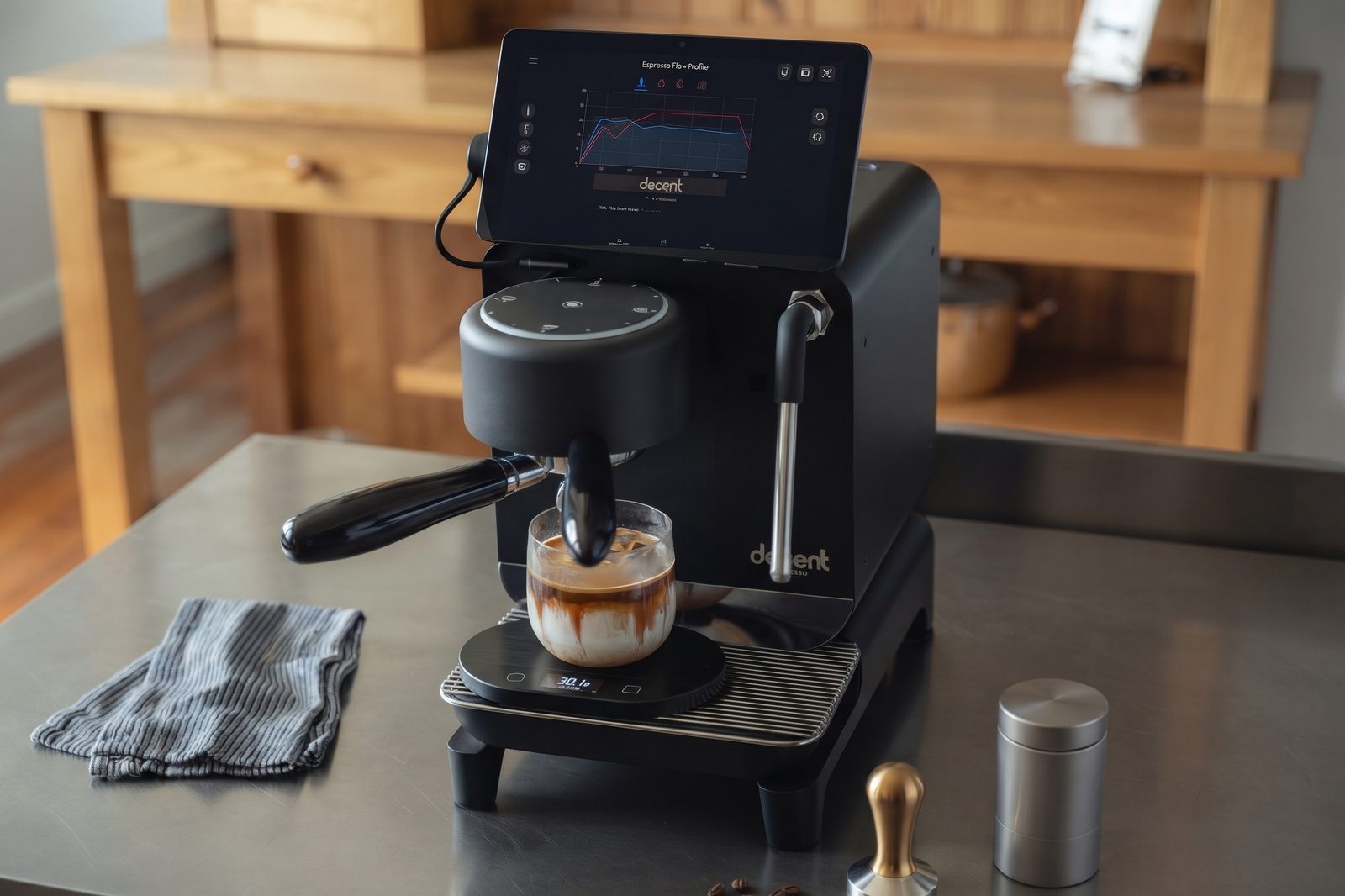
A cleaner experience for your Decent
Less software in the background. More like part of the machine.
Why we made this
While we were making Decadent, we wanted the cleanest overall experience for our coffee machine, so we decided to de-bloat the tablet and streamline the user interface.
This script is useful on its own so we're releasing the code and hosting it for use.
The clean-up and the new home screen work for any DE1 owner, and Decadent is one optional icon. The home screen runs Fossify Launcher, so you can customize it however you like afterwards.
What we keep, what we switch off, and why
The tablet's job is to run your DE1. Out of the box it also carries a phone's worth of apps and background services that have nothing to do with espresso, and many of them send data back to someone. So we keep what the DE1 and the tablet's safety need, and switch off the rest.
- Fewer things phoning home. Games, shopping, sharing features and Samsung's data and advertising agents are switched off. Each one is a source of telemetry and a target for updates and pop-ups the machine never needed.
- Keep updates and security patches. Samsung's firmware updater stays, so the tablet still gets Android security updates. That keeps a little of Samsung's diagnostics running, the price of patches.
- One browser: Chrome. A web app like Decadent needs a browser that stays up to date. Android already runs on Google's browser engine and Google Play services, so Chrome adds no new company to the list. Samsung Internet would add another.
- A Google account, any one. Signing in lets the Play Store keep Chrome and its engine updated, and lets Chrome install web apps such as Decadent full screen. We suggest a new account just for the tablet, because the tablet has no lock. One you already use works too.
- Nothing deleted, everything reversible. Apps are switched off, not removed, and undo puts it all back.
Two choices, take either or both
- Clean up: about 100 bundled apps and background services are switched off, not deleted, and any can be brought back later. Chrome becomes the browser, and the screen sleeps after 10 minutes.
- New Home screen: three large icons, Decaid, Decadent and Settings, and swipe gestures so apps get the whole screen.
Before you start
What stays
- Decent's own apps, including the original Decent app.
- Bluetooth, Wi-Fi, Settings, the keyboard and Samsung updates.
- The tablet's own system software: no rooting, no custom firmware, no factory reset.
You need
- A computer with Chrome or Edge.
- A USB cable that carries data.
- A Samsung tablet supplied by Decent Espresso: model SM-X133, shown in Settings → About tablet.
These changes aren't permanent and nothing is deleted, so you can try it and revert easily.
This browser can't connect to a tablet. Open this page in Chrome or Edge on a computer, at an https address.
Let the tablet talk to this computer
On the tablet:
- Open Settings → About tablet → Software information.
- Tap Build number seven times, until it says Developer options are on.
- Go back to Settings and open Developer options. If you can't see it, it's at the bottom of Settings.
- Turn on USB debugging, and tap OK.
- Plug the tablet into this computer, and leave it unlocked.
Connect the tablet
- Choose Connect tablet. Your browser lists USB devices. Pick your tablet (it may say SAMSUNG or SM-X133) and choose Connect.
- On the tablet, tick Always allow from this computer, then tap Allow.
Nothing is changed without your OK, see what to disable and pick options next.
Waiting for you to tap Allow on the tablet…
Tablet found
Put it back the way it was: apps back on, the original Home screen, or both. You choose what on the next screen.
All the listed apps are already off.
Choose at least one.
Nothing is deleted. Any app can be brought back later: turn it on again in Settings → Apps, or from its page in the Play Store, the normal way.
Decaid installation
Keep the cable plugged in until it finishes. It takes a few minutes.
Decaid is already on this tablet. Nothing to install. Choose Set up this tablet to go on.
Choose the Decaid file you downloaded, or choose Skip Decaid.
Working…
Keep the cable plugged in.
Show details
Last steps
The clean-up is done. Two things need you. This page does the rest.
Only you can do these
- Wi-Fi. Checking…
Type the network for the tablet. A guest or smart-home network is best, because Decaid's connection has no password. The name and password go straight to the tablet and aren't kept anywhere.
Or join on the tablet yourself. This page notices.
- Google account. Checking…
We recommend one: it lets the Play Store update Chrome, and lets Decadent open full screen. Use a new account made only for this tablet, because the tablet has no lock. Without one, everything still works, but Chrome may not update and Decadent keeps its top and bottom bars.
Sign in on the tablet. This page notices when you're done.
Without Wi-Fi, the updates and Decadent are left for you to do later.
Finishing the tablet…
Keep the cable plugged in, and leave the tablet alone until this is done. It takes about five minutes.
- Restart the tablet
Restart the tablet: hold the power key, then tap Restart.
- Remove Chrome, Play Store and Camera from Home
On Home, long-press Chrome, Play Store and Camera, and tap Remove on each. The apps stay installed.
- Set Home to 3 rows and 5 columns
Long-press empty space, tap Launcher Settings. Set Row count 3, Column count 5, and turn on Close app drawer on opening an app.
- Update Chrome and Android System WebView
In the Play Store, update Chrome and Android System WebView.
- Install Decadent
In Chrome open decadentcoffee.app/app, tap the install icon in the address bar, and tap Install.
- Put Decaid, Decadent and Settings on Home
On Home, swipe up from the middle of the screen. Hold and drag Decaid, Decadent and Settings to the middle three spaces of the middle row. Any apps you like work too.
- Open Decaid, then Decadent
Open Decaid once, then Decadent.
Left for you
You can unplug the tablet now.
What to do next
A few tips for everyday use, and how to make the tablet your own.
Everyday use
- Home: swipe up from the very bottom edge.
- All apps: on Home, swipe up from the middle of the screen.
- Wake: double-tap the screen, or press the power button.
- After a restart: open Decaid once, then Decadent.
- Keep Decaid running: don't use Close all in the recent apps view. It stops Decaid, and the machine loses its connection.
Change the icons on Home
- Add an app: open all apps, touch and hold the app, and drag it to an empty space on Home.
- Move an icon: touch and hold it, then drag it.
- Take an icon off Home: touch and hold it and choose Remove. The app stays installed and is still in all apps.
- Grid, icon size and more: touch and hold an empty space on Home and choose Launcher settings. The Home screen is Fossify Launcher, so all its options are yours to change.
Want an app back?
- Nothing was deleted. Open Settings → Apps, choose the app and tap Turn on. You can also find it in the Play Store and tap Enable.
- Apps you install from the Play Store work as normal. Touch and hold one in all apps to put it on Home.
- To put everything back as it was, come back to this page, connect the tablet and choose Undo changes.
Undo changes
This uses the record kept on the tablet. Apps that were off before this page first ran stay off.
Choose at least one.
See every item
Any Google account you added stays: remove it under Settings → Accounts and backup.
All put back
Restart the tablet, then check Home and Settings. If you added a Google account, remove it under Settings → Accounts and backup.